
Overview
Priority Groups let you keep an eye on student training. This feature is perfect if you support students but aren’t the one assigning their Membean work (think support facilitators, ESL coordinators, guidance counselors, instructional coaches, etc.). Priority Groups provide visibility into student progress, while leaving training expectations and assignments with the student's primary teacher(s). This article walks you through when to use Priority Groups and how to set them up.
When should I use a priority group?
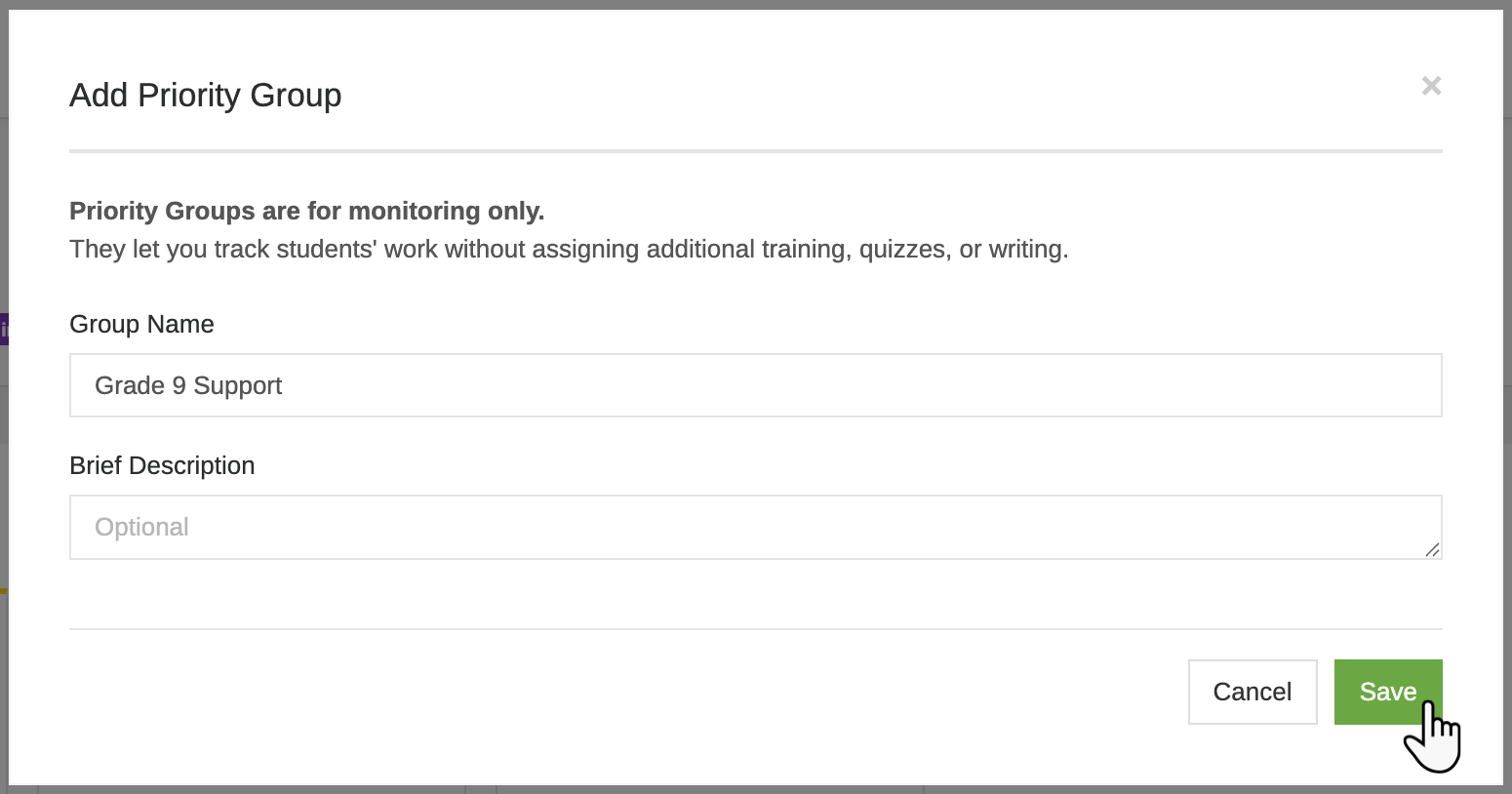
Priority Groups are for monitoring only. Create one when you need student oversight but are not responsible for assigning Membean work.
Common use cases include the following:
- A support facilitator tracking intervention students
- An ESL coordinator monitoring vocabulary growth
- A guidance counselor checking engagement and goal completion
- An instructional coach reviewing performance trends
- A homeroom or study hall teacher responsible for giving students time to complete training
- A Gifted & Talented teacher tracking enrichment students
Students you add to a Priority Group continue working in their enrolled class(es), and you’ll see progress based on those class requirements. They will not receive additional training expectations, quizzes, or writing assignments from your Priority Group. They also will not be notified when they are placed in a Priority Group.
Creating a Priority Group
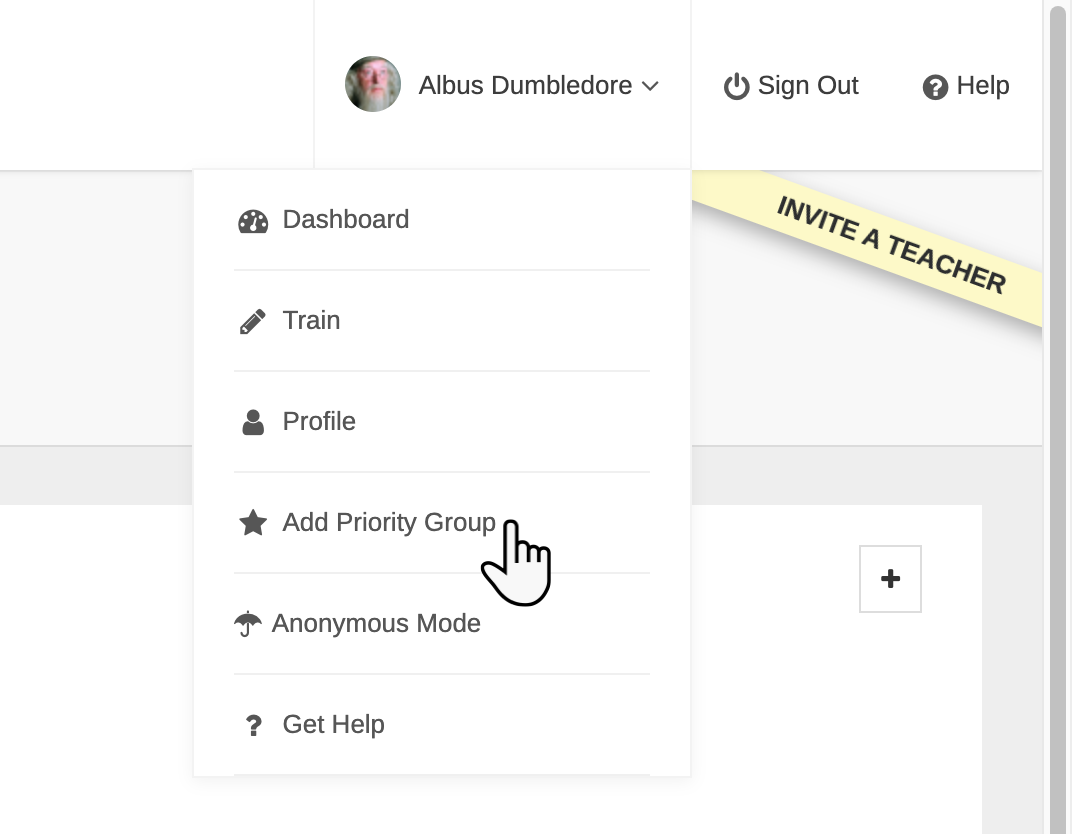
Click your name in the top right corner of your dashboard and select Add Priority Group.
In the pop-up modal, name your Priority Group, add a description (optional), and click Save.
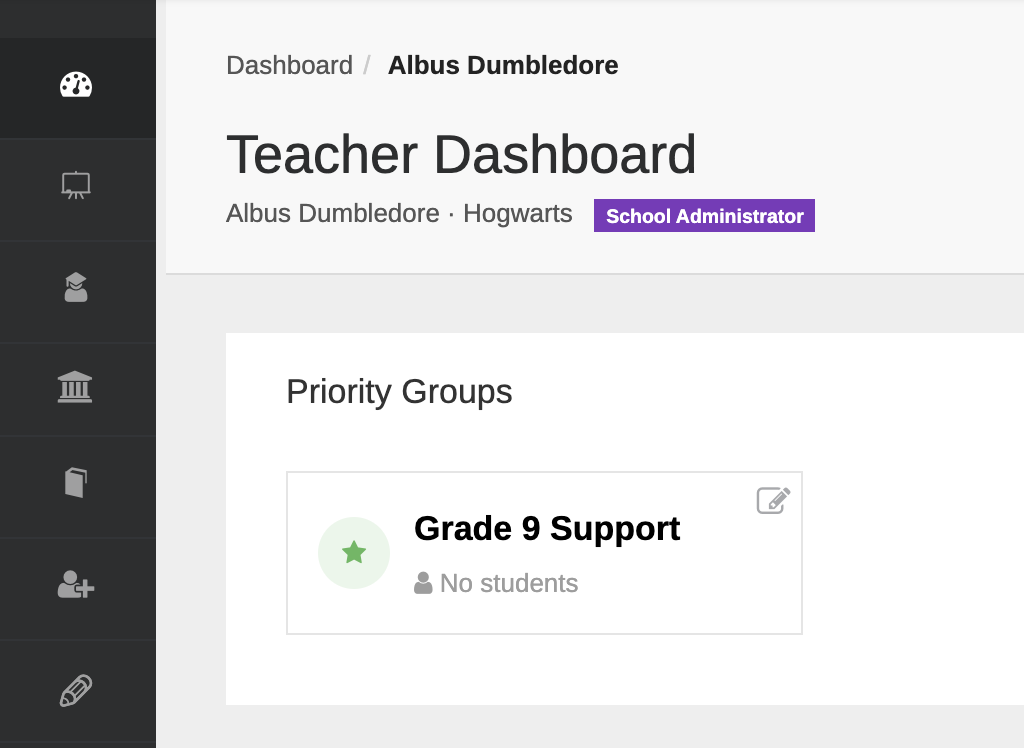
The Priority Group will appear on your teacher dashboard.
Adding Students
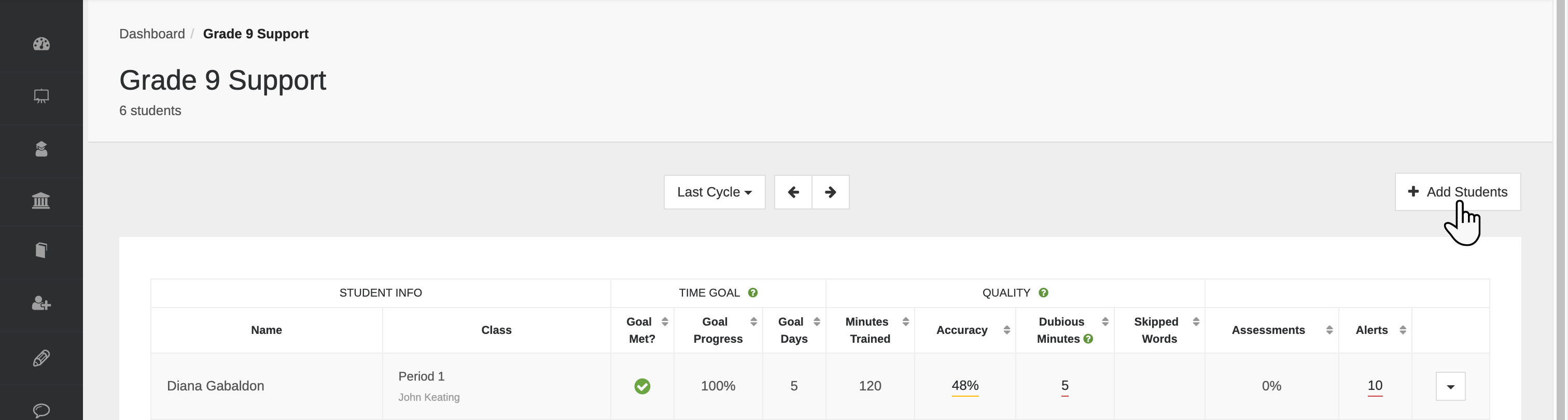
Open the Priority Group and click Add Students.
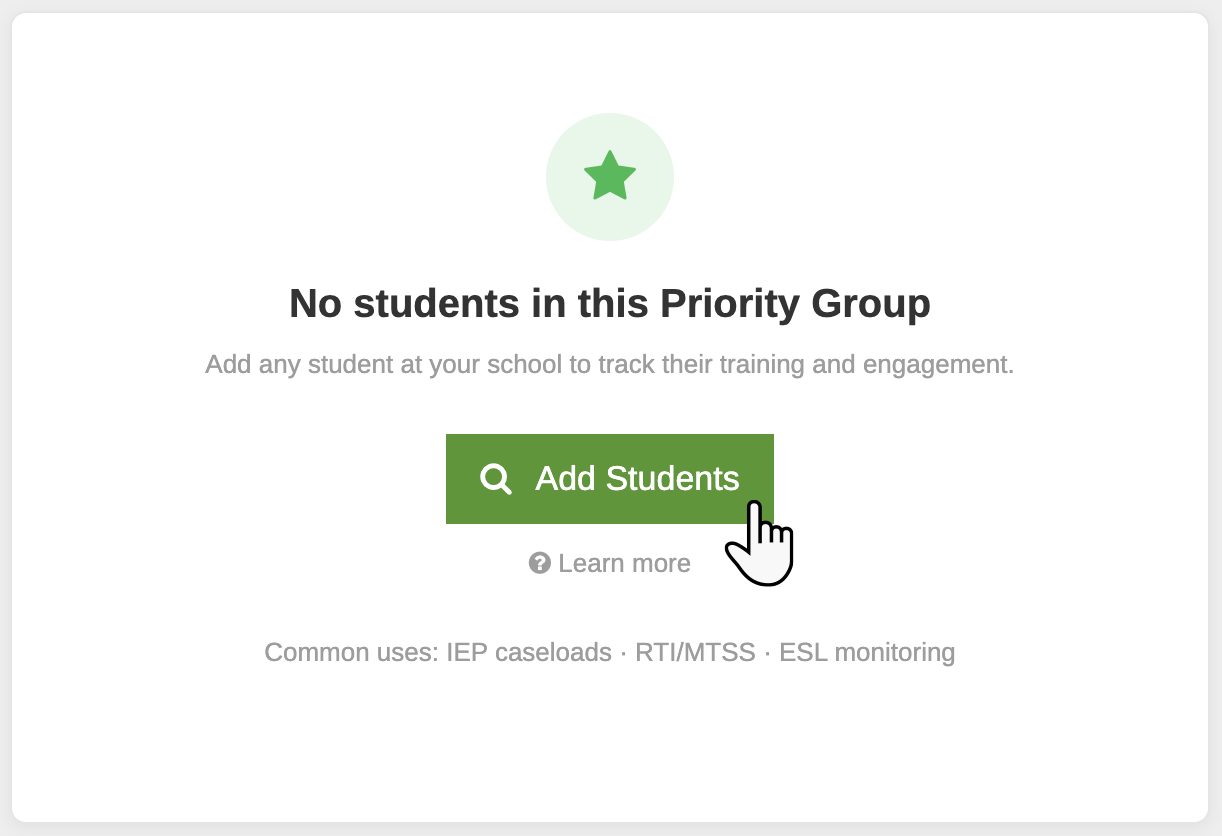
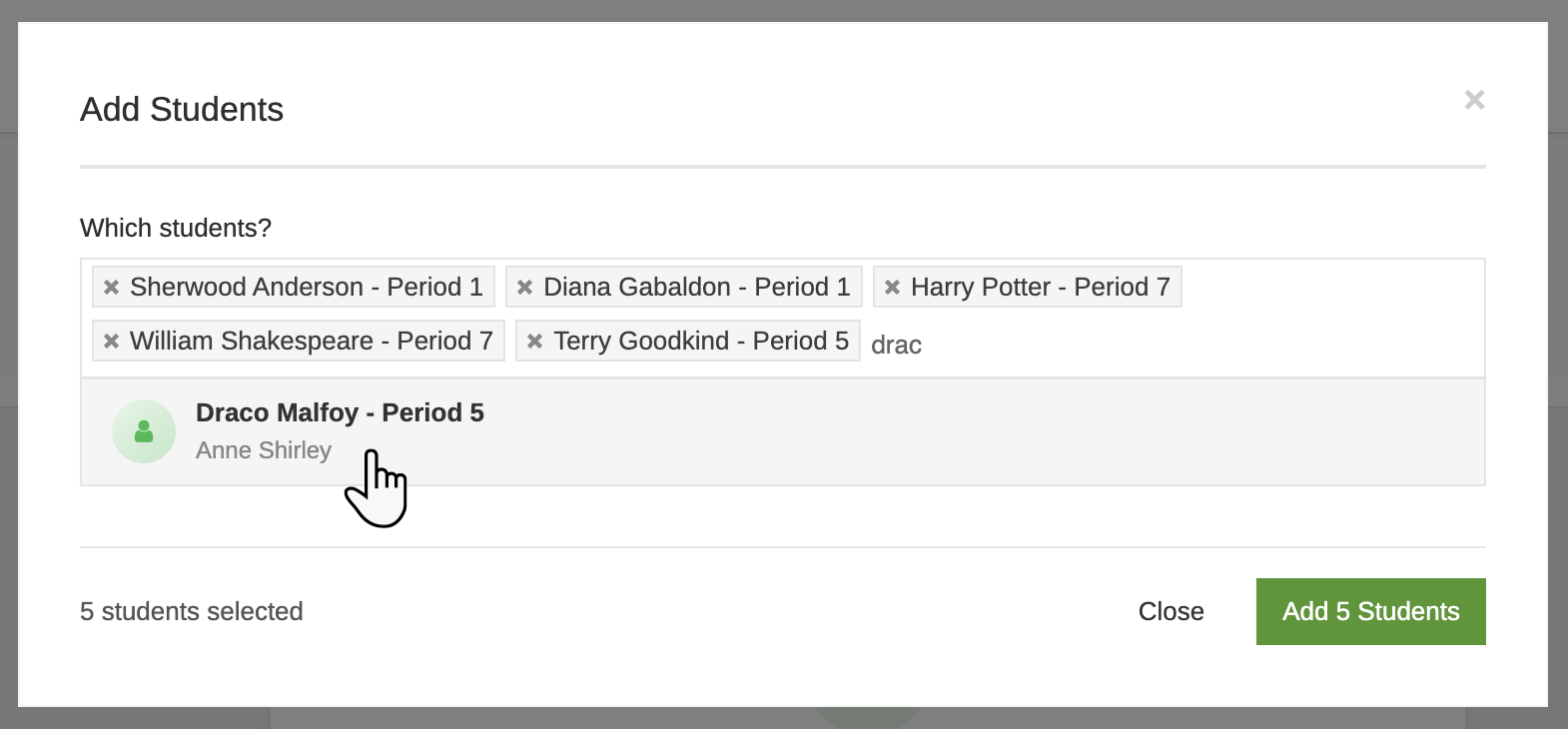
Search and select one or more students. All students in the school are available to add. Once you've made your selection(s), click Add Students.
To add more students later, just click +Add Students from inside the Priority Group.
Understanding the Priority Group Report
The Priority Group report mirrors the Training Report, but pulls data based on each student’s enrolled class.
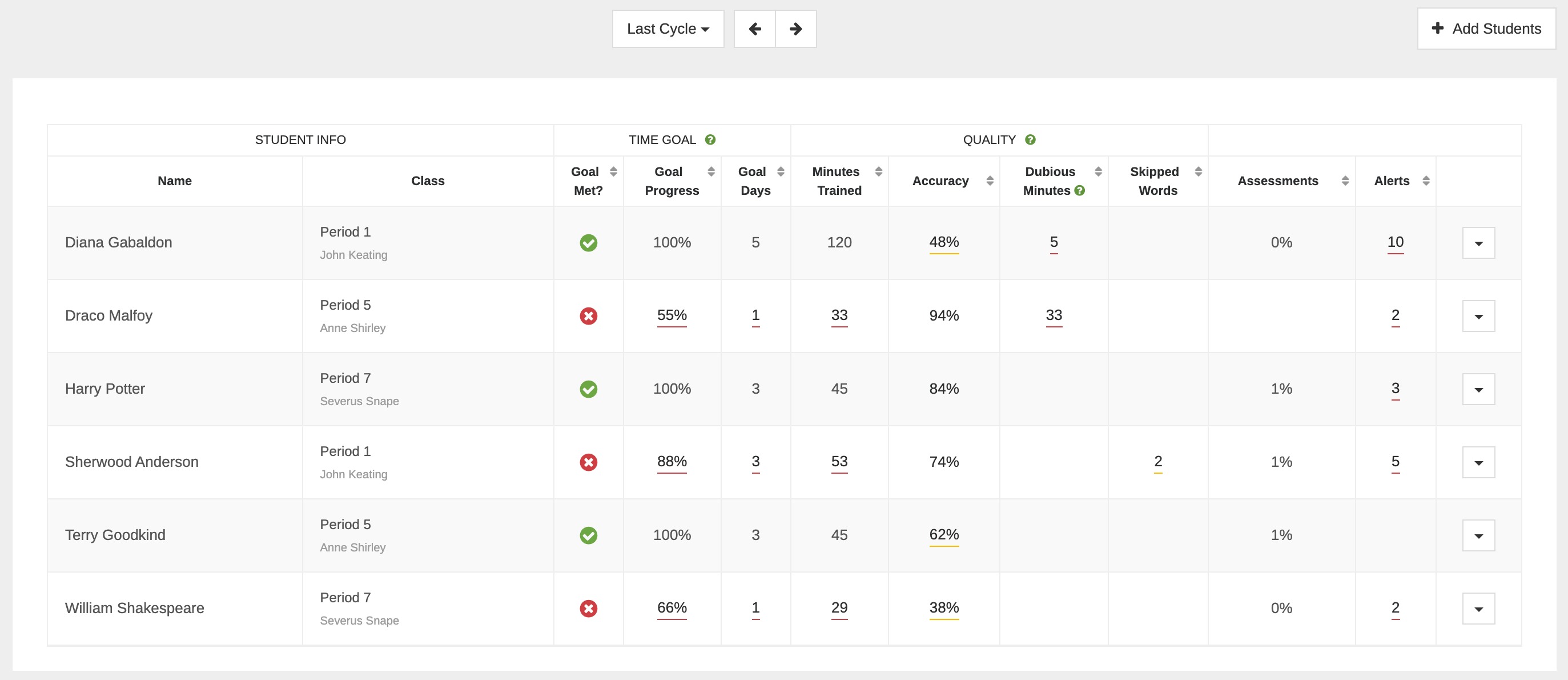
Keep in mind that students may be in different classes, which means they may have different cycles and expectations. For example, one student may be required to complete 45 minutes per week across 3 days. Another may need 60 minutes across 4 days in a 10-day cycle. Each student's row reflects their class’s cycle length, expectations, and progress toward those goals.
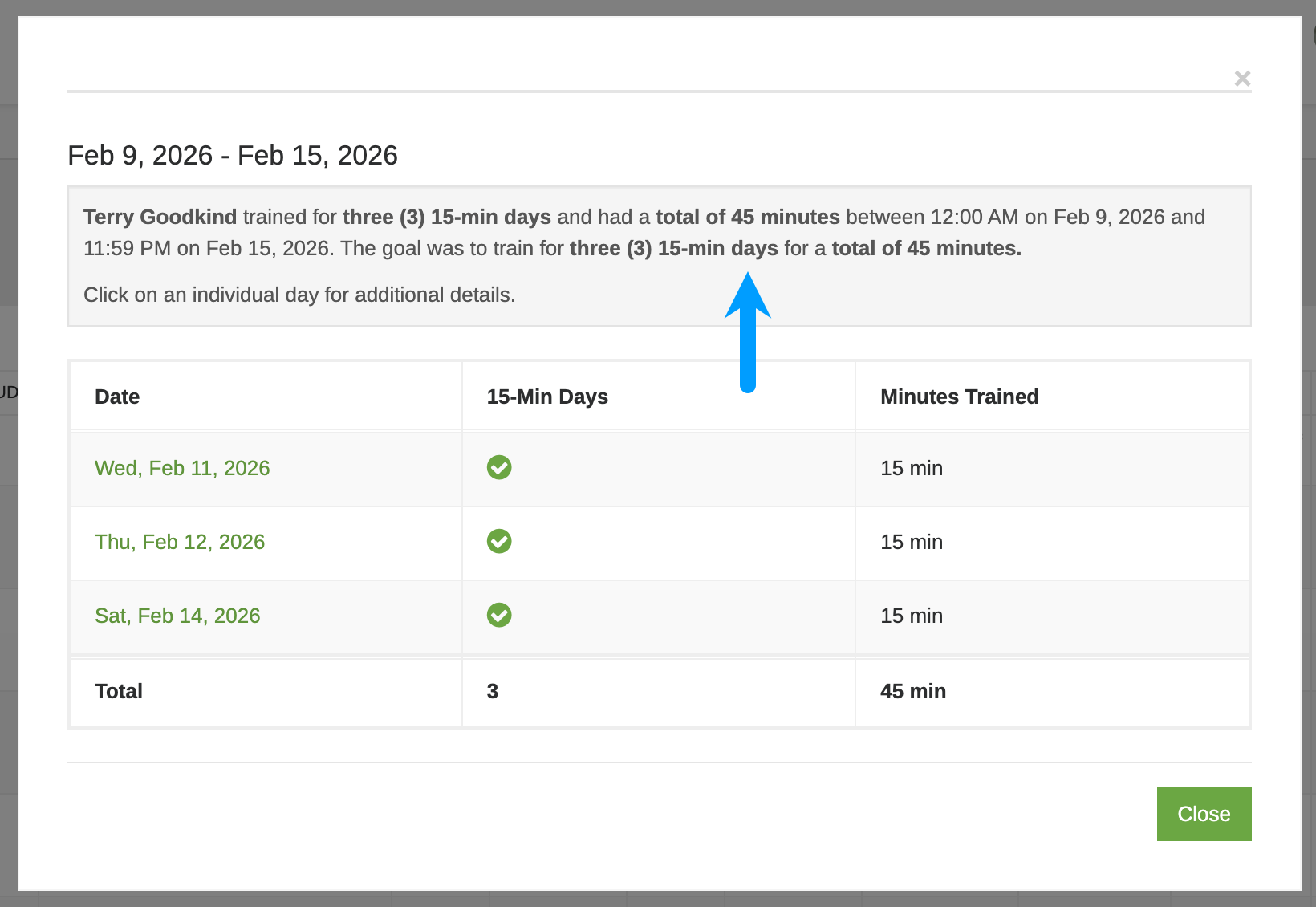
To see a student's exact goal requirements, click any value in the Goal Met column.
Viewing Previous Training Cycles
The report defaults to the previous training cycle. You can use the left and right arrows to move between cycles, or the dropdown menu to quickly return to the current or last cycle.
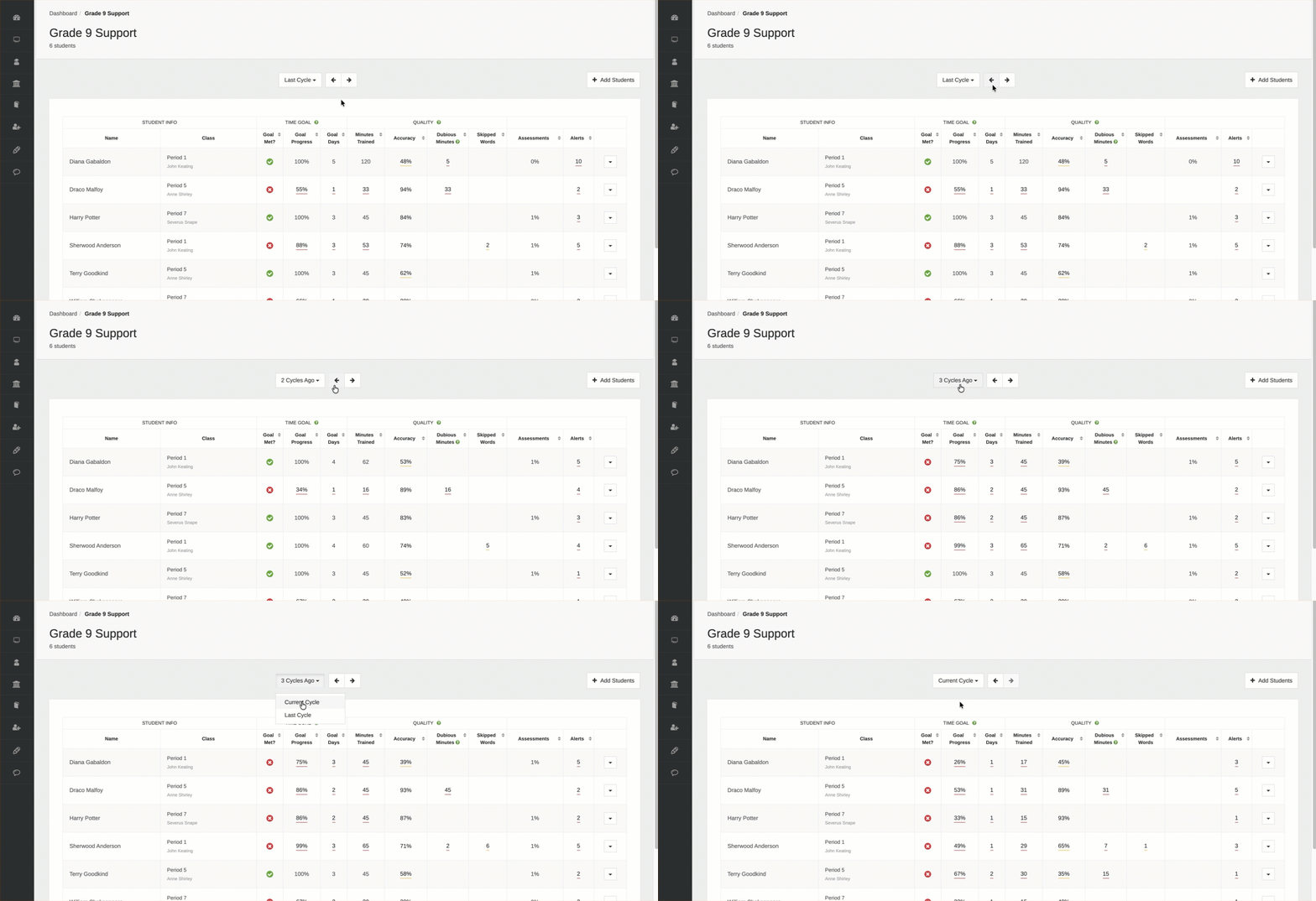
It’s important to remember that students in the same Priority Group may have different cycle lengths and dates. One student's current cycle may be 10 days. Another's may be 7 days. When you toggle cycles, the report adjusts relative to each student’s own class cycle. Therefore, date ranges may differ from student to student.
Identifying Students in Priority Groups
You’ll see some visual indicators when one of your students has been added to a Priority Group.
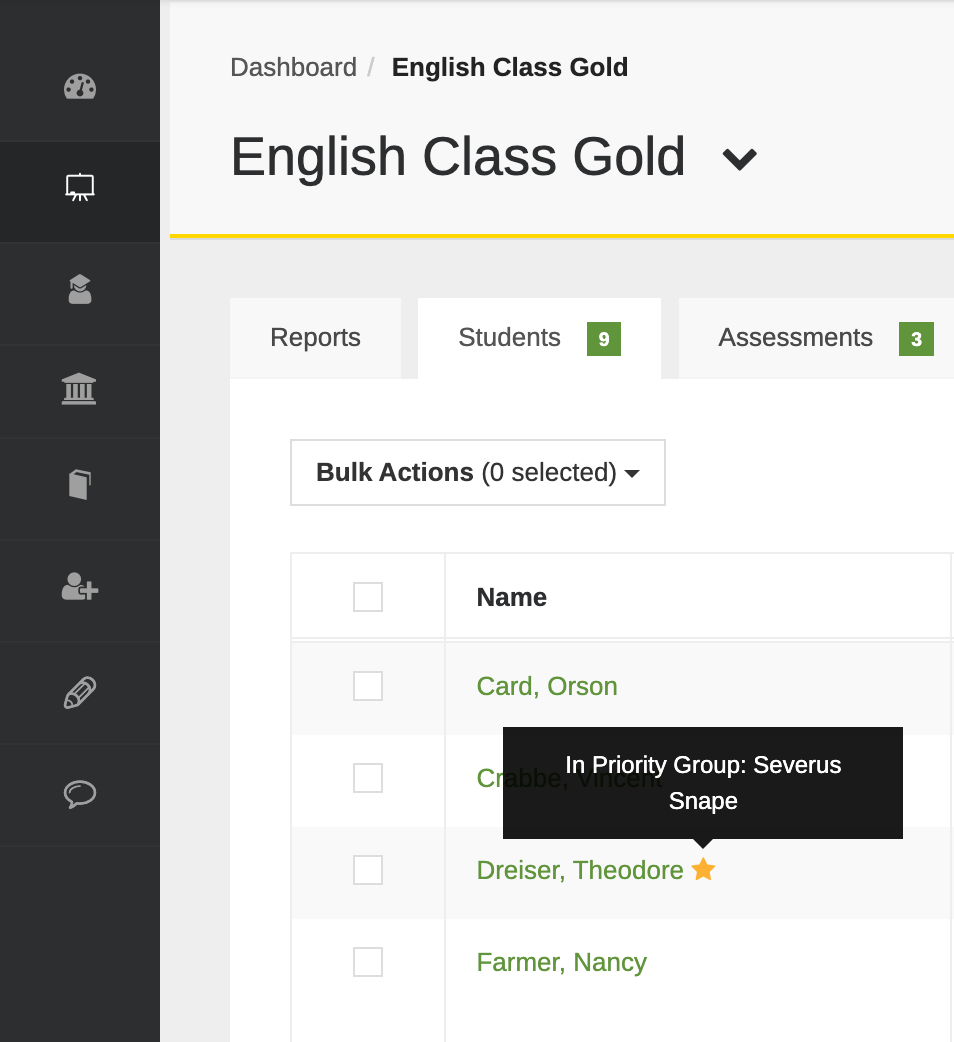
1. On the Students tab: a star appears next to any student who is part of a Priority Group. Hover over the star to see which teacher(s) added them.
2. On the student’s profile page: a banner at the top indicates that the student is included in one or more Priority Groups.
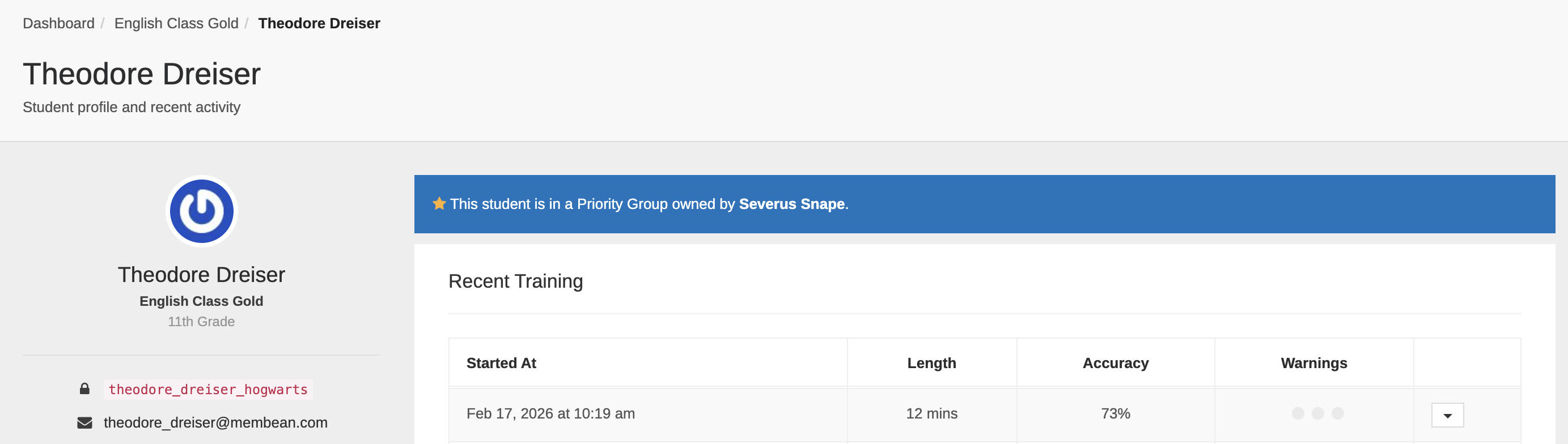
These indicators make it easy to see which students are being monitored and by whom.
Removing Students
Click the dropdown menu to the right of the student's row. Select Remove from Priority. You’ll no longer see them on your report.
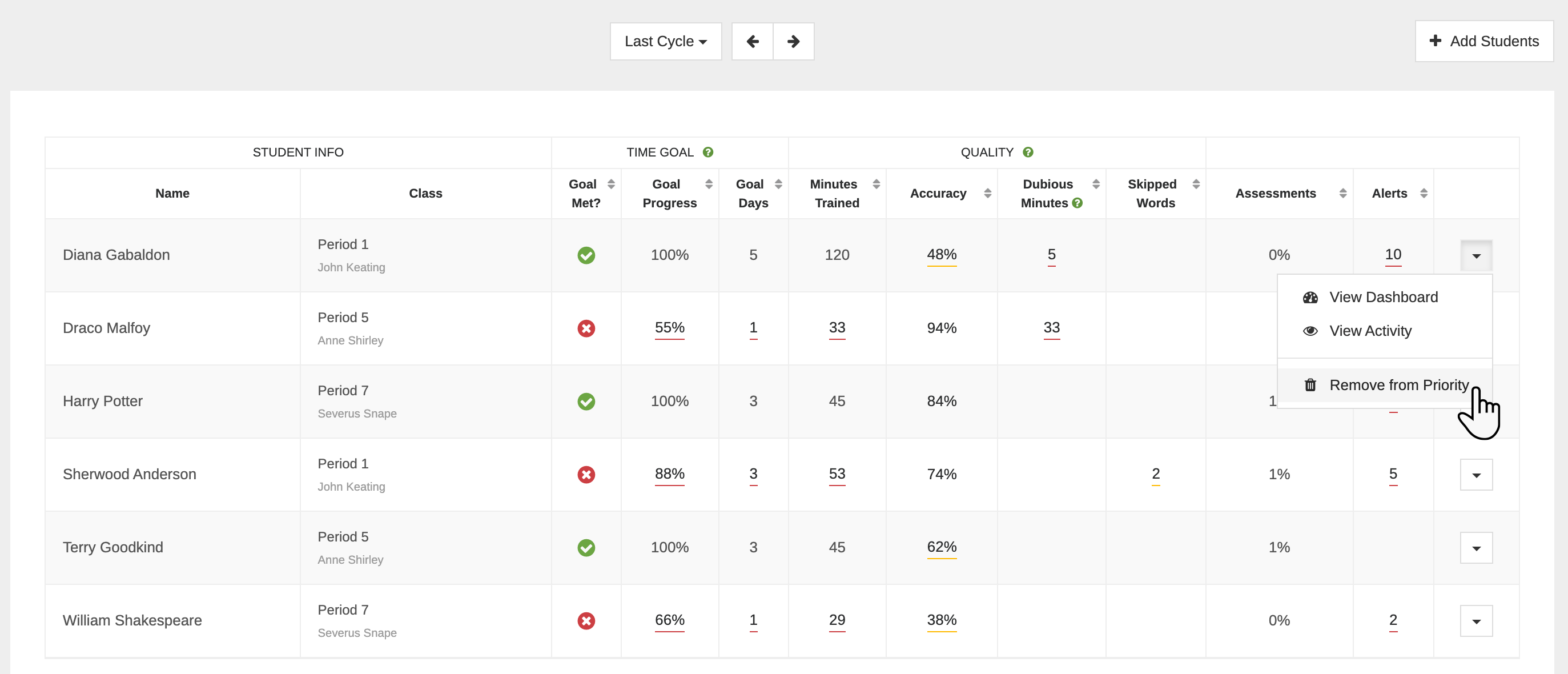
This does not remove the student from their class. It only removes them from your Priority Group.
Deleting a Priority Group
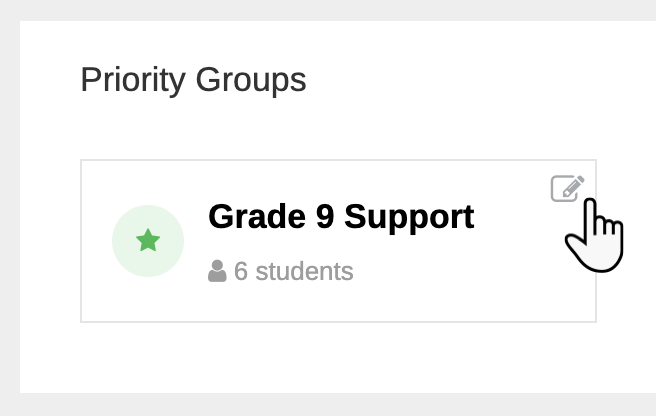
To delete a Priority Group, click the edit icon on the group.
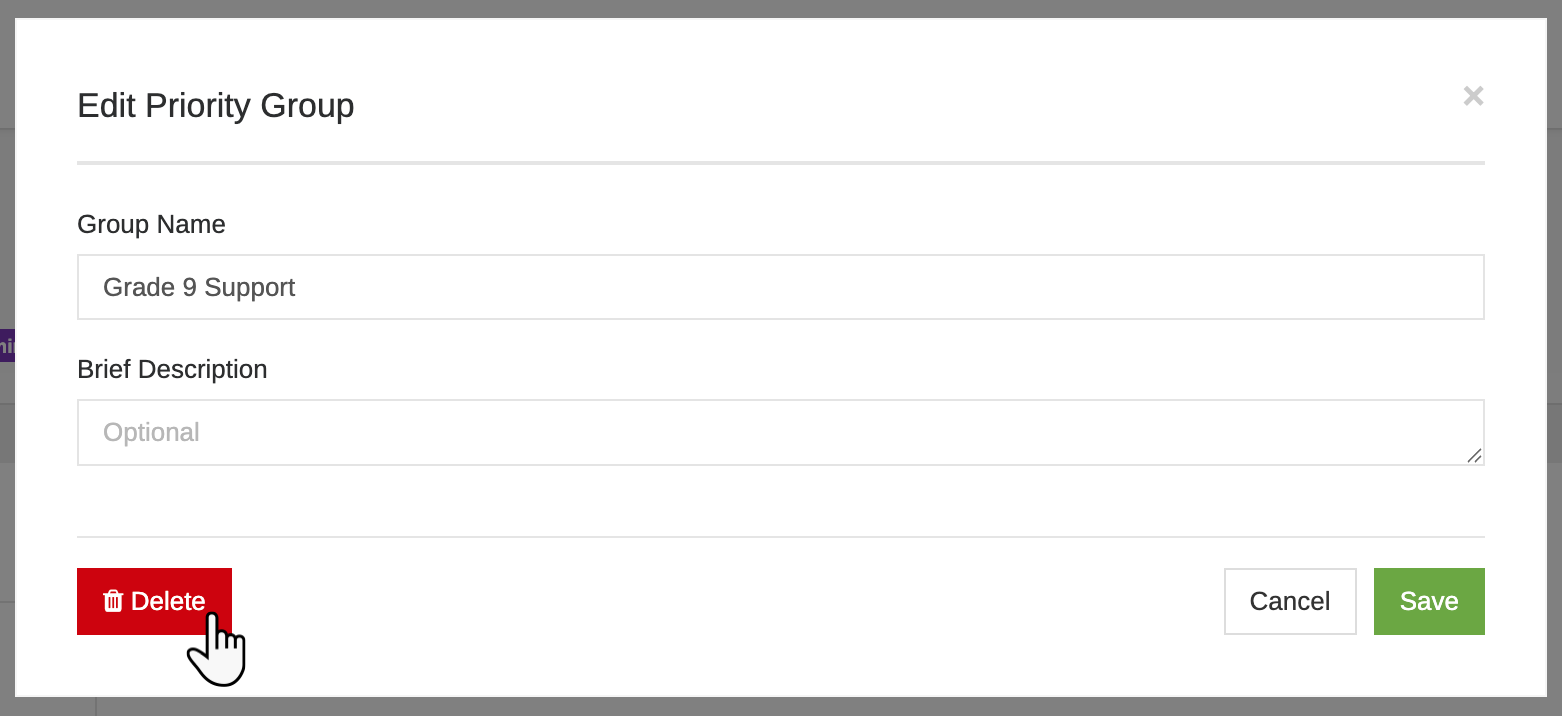
Click Delete from the Edit Priority Group modal, then confirm your deletion.
Deleting a Priority Group does not delete the student or remove them from any class enrollments. It only removes them from the Priority Group itself.
Priority groups are automatically deleted at the end of each academic year.