Overview
Some students need flexibility when completing assessments. Accommodations such as those from IEPs, 504 plans, or ESL support may allow students to complete a quiz over multiple sittings, days, or settings. The Pause Quiz feature lets you pause a student's quiz without losing their work. While paused, the student cannot access the quiz, and you can manually resume it when they're ready to continue or schedule it to resume automatically at a specific date and time.
When to pause a quiz
Pausing is useful when a student needs to stop an assessment and continue it later.
When a quiz is paused:
- Student answers are saved
- The quiz timer stops
- The student cannot access the quiz until it is resumed by the teacher
You might pause a quiz when:
- A student will finish the quiz later with an ESL or resource teacher
- A student needs to complete the quiz over multiple days
- A student requires extended breaks
- A student needs to move to a different testing environment
How to pause a quiz
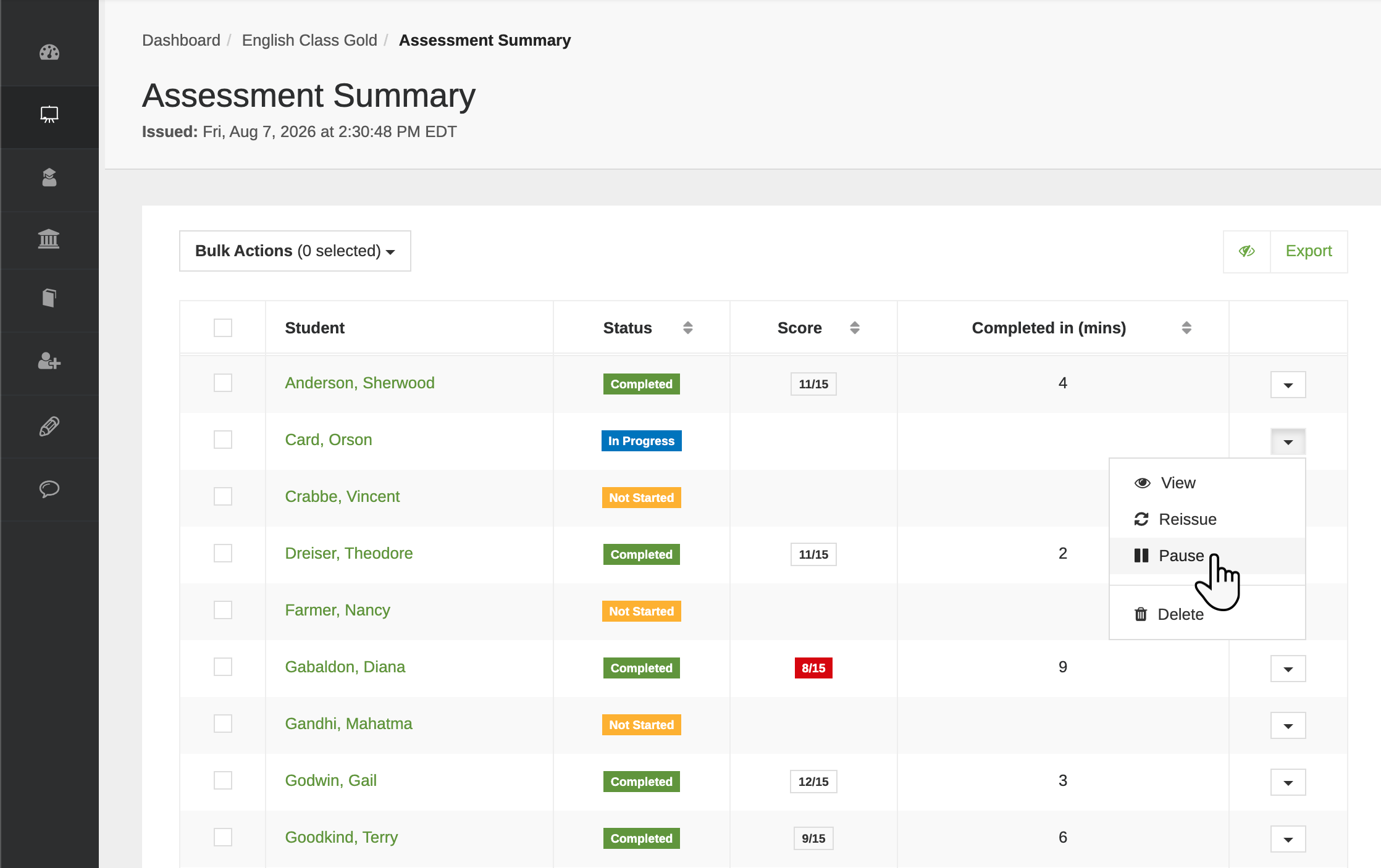
From the Assessment Summary page, click the dropdown next to the student's name and click Pause.
You'll have two options for resuming the quiz.
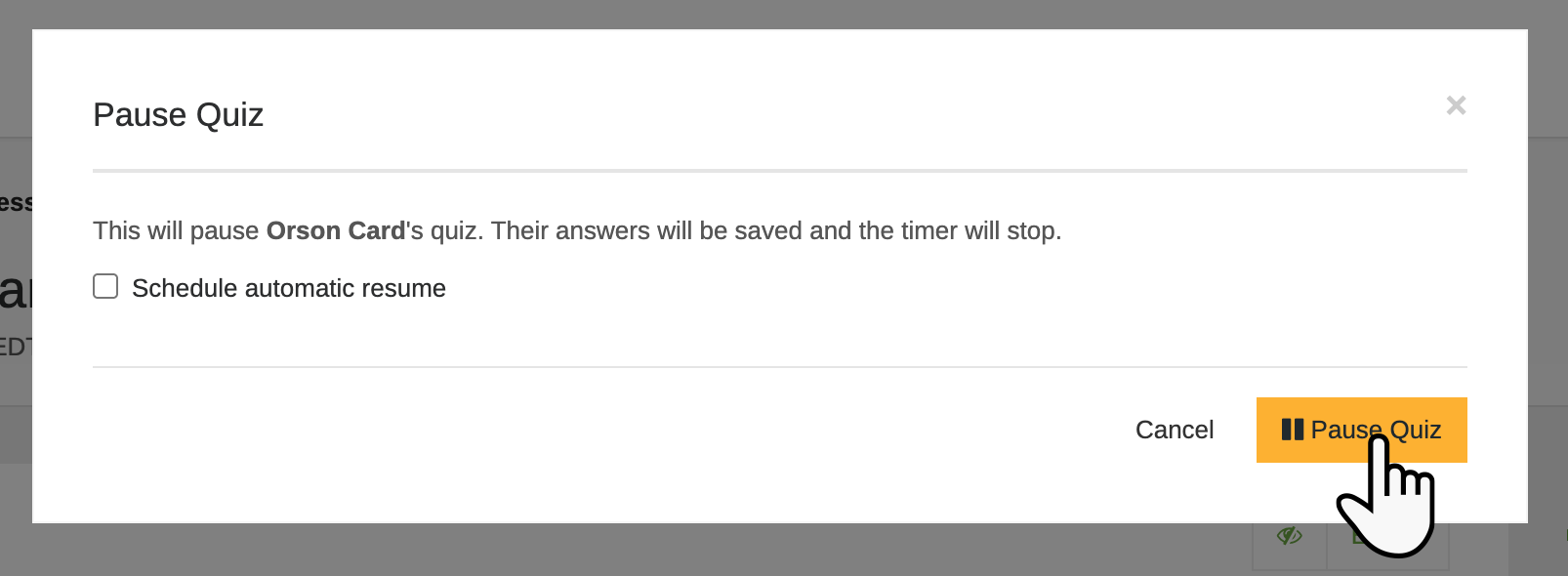
To resume the quiz yourself when the student is ready, leave Schedule automatic resume unchecked and simply click Pause Quiz.
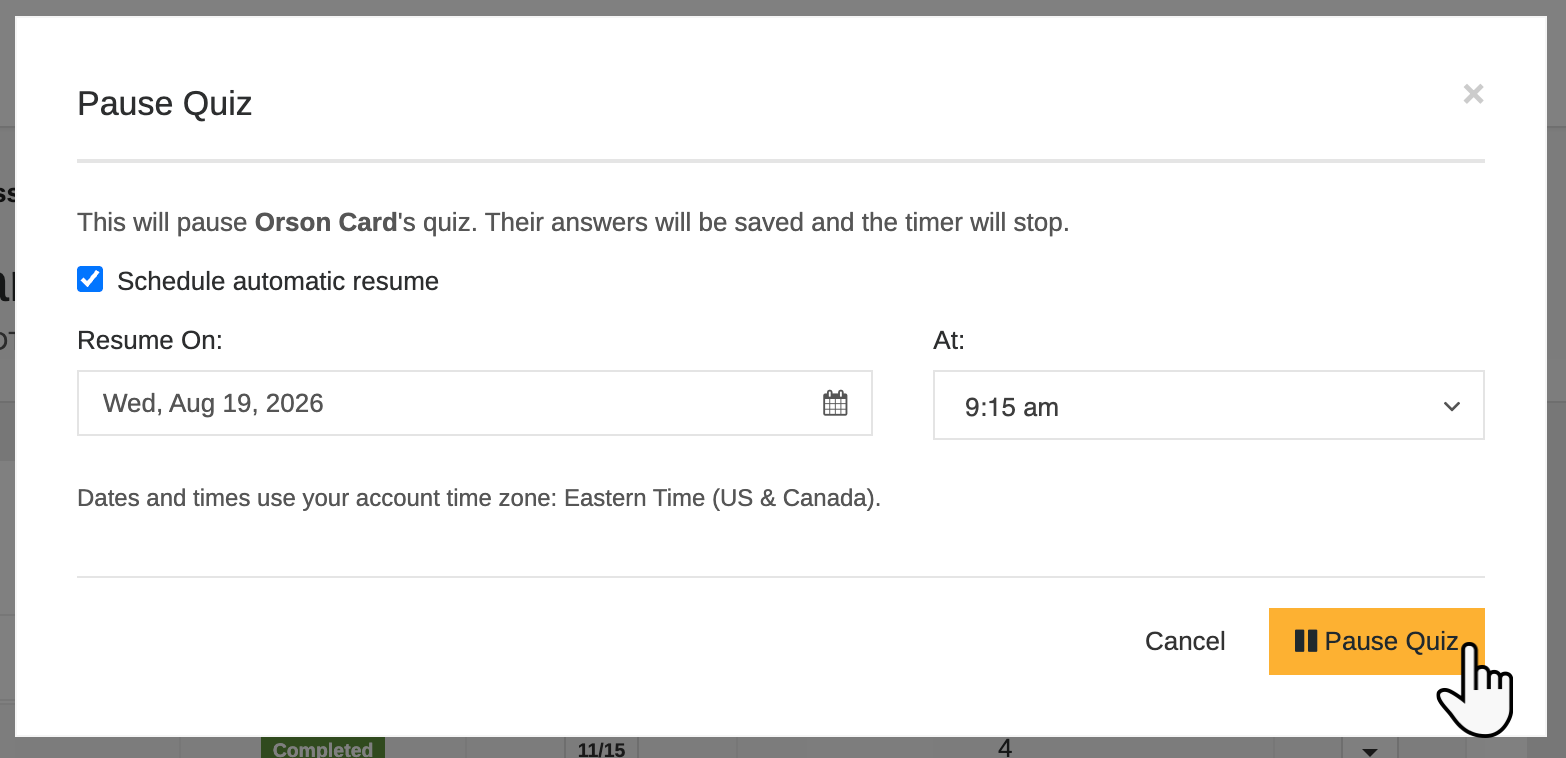
To have the quiz resume automatically, check Schedule automatic resume and select the date and time when the quiz should become available again. Then, click Pause Quiz.
What students see
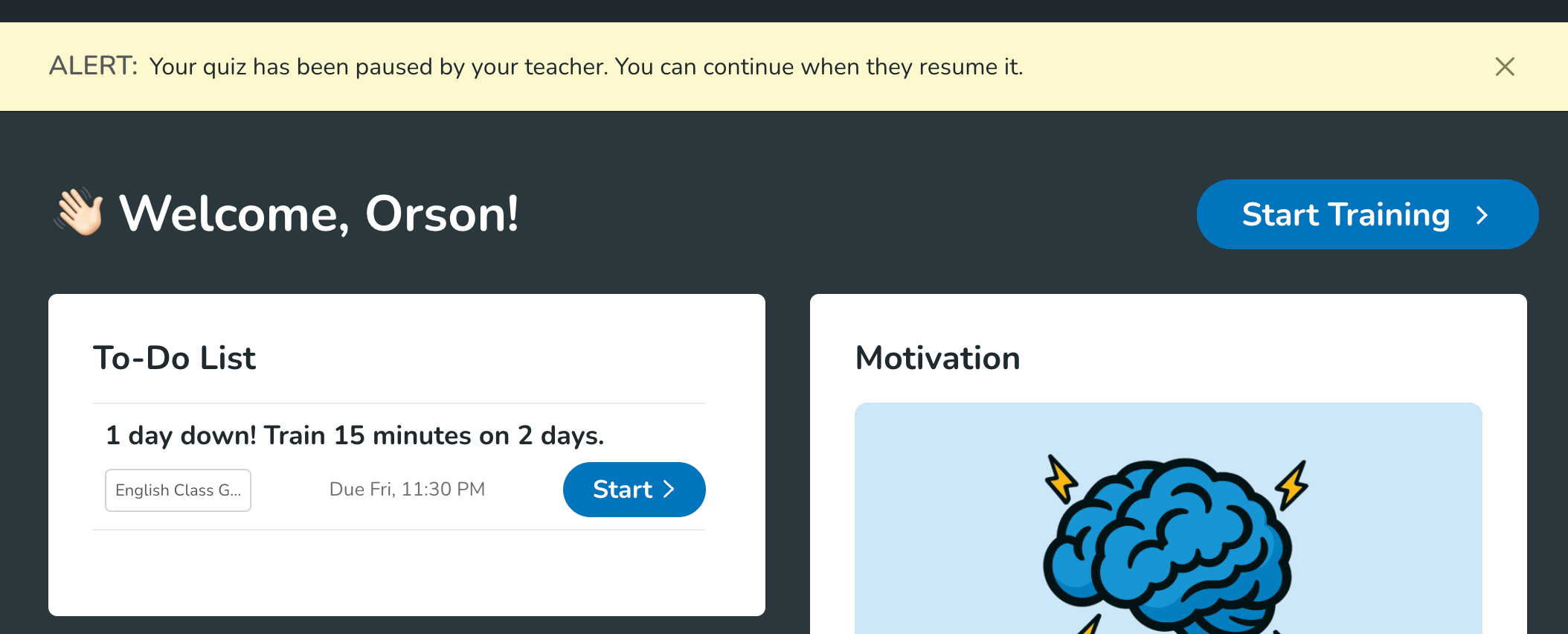
If a student is actively taking the quiz when you pause it, they'll be returned to their dashboard and see a message letting them know that their teacher paused the quiz.
The student's Graded Work section will also show that the quiz is paused.
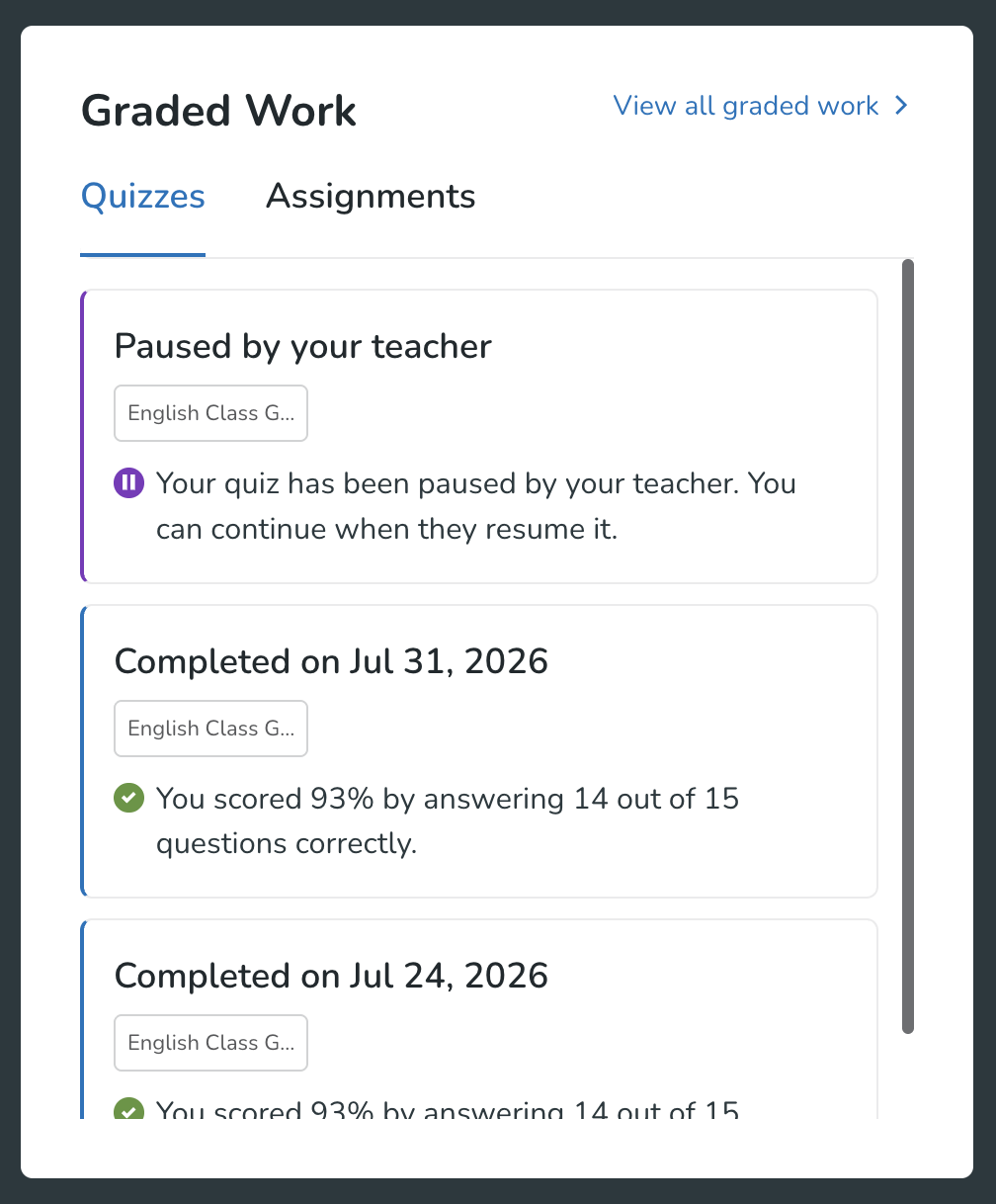
The student will not be able to access the quiz again until it is resumed manually by the teacher or reaches its scheduled resume time.
How to resume a quiz
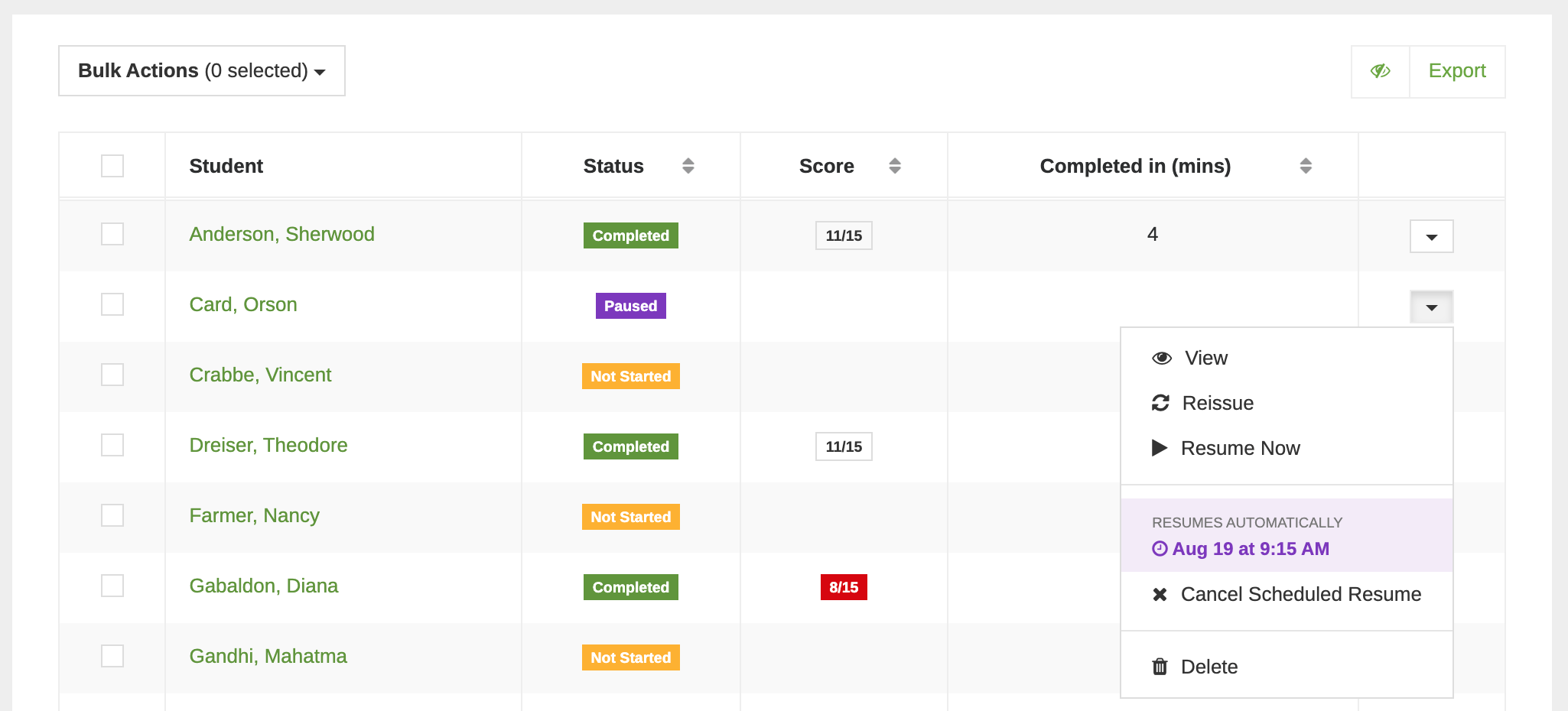
To manually resume a paused quiz, click the dropdown next to the student's paused quiz and click Resume Now. The student can then return to the quiz and continue where they left off.
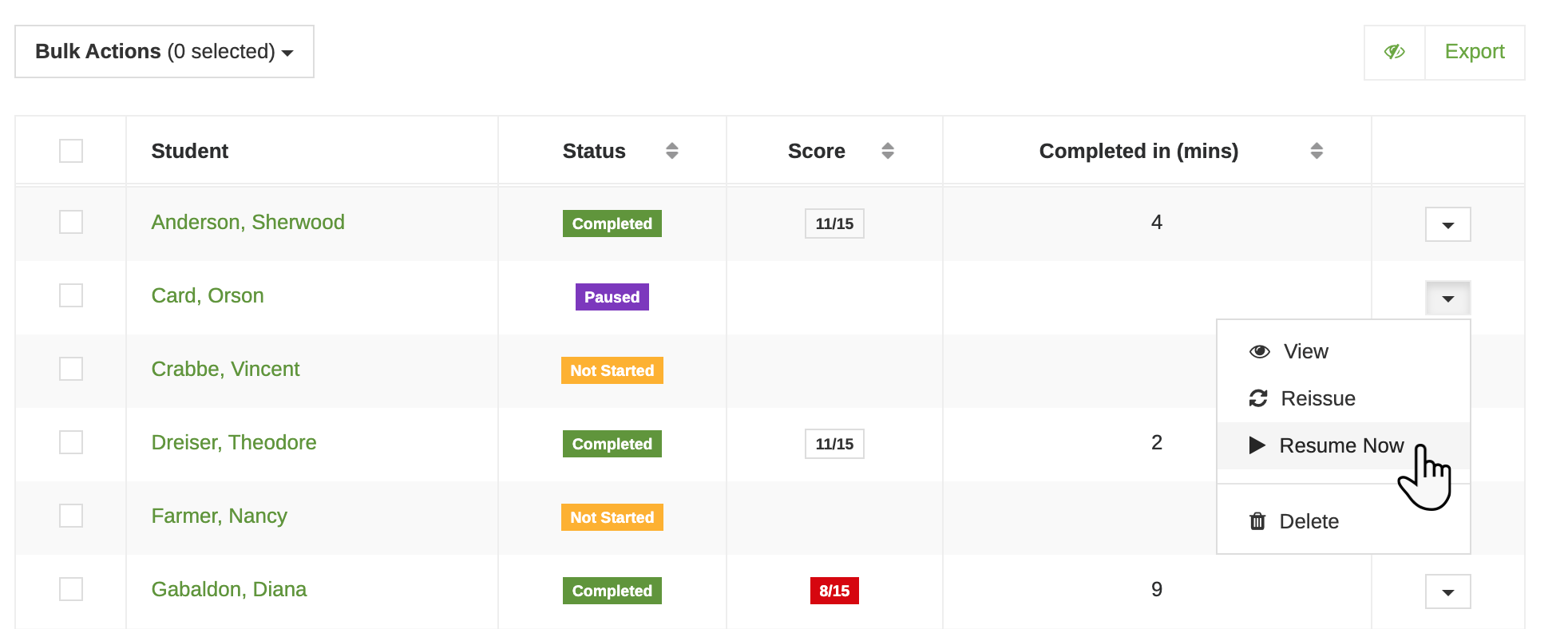
If you scheduled the quiz to resume automatically, it will become available to the student at the selected date and time.
You can also use the dropdown next to the paused quiz to review the scheduled resume date and time, cancel the scheduled resume, or resume the quiz immediately.