
Overview
Rostering with Clever or ClassLink allows your district to automatically sync schools, classes, teachers, and students from your Student Information System (SIS) into Membean. This eliminates the need for manual class setup and ensures data stays up to date throughout the school year.
Requirements
Each teacher and student can belong to only one school in Membean. If students or teachers are expected to use Membean at multiple schools, then we cannot roster. If students or teachers are enrolled in multiple schools but will only be using Membean at one, we can roster as long as only the classes using Membean are shared.
- Single Sign-On must be enabled for login. We offer Google SSO and SAML.
- Schools must have a name.
- People must have an email, first name, and last name.
- People can only be assigned to a single school.
- Students must be enrolled in at least one class.
- Classes must have a grade level and a name.
What Should I Share with Membean?
Limit shared data to only necessary schools, classes, and administrators. Not all classes in the school will use Membean. Sometimes, not all grades or English classes will use Membean. Identifying the correct classes will help avoid oversharing PII.
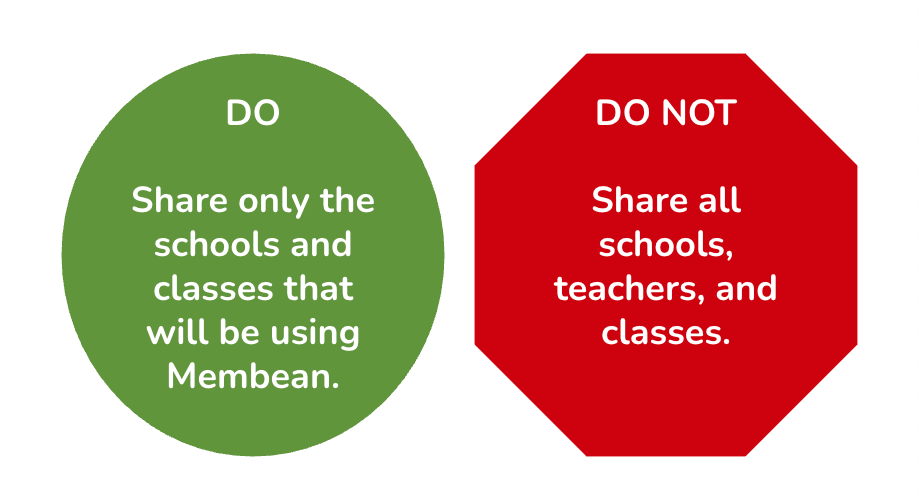
Do not share all schools, teachers, and classes. Instead, share the following:
- Classes that will be using Membean
- Teachers not already enrolled in these classes who will monitor students on Membean, such as study hall or special education teachers
- Administrators, technology facilitators, or anyone else in charge of monitoring Membean usage
Membean is not designed to be an optional tool within a class. Each class includes training expectations that are visible to students. If unnecessary classes are shared, students will appear in multiple classes and receive excessive training expectations. Additionally, reporting and usage data will be skewed.
Supported Roles
Membean has administrator roles that allow certain people to access more information than teachers can:
- School Administrator: Access to all class, student, and teacher information and usage data at the school they belong to.
- District Administrator: Access to all class, student, and teacher information and usage data for all schools in the district.
We support OneRoster roles when rostering via Clever and ClassLink. People in your SIS who are shared with Membean with administrator, principal, and siteAdministrator OneRoster roles will automatically be granted School Administrator privileges in Membean. People in your SIS who are shared with Membean with the districtAdministrator OneRoster role will automatically be granted District Administrator privileges in Membean.
However, oftentimes people who do not have those OneRoster roles, such as department heads or technology facilitators, will need those privileges. You can add custom metadata to people when you share your data that will grant anyone you choose School Administrator or District Administrator privileges in Membean. So, while your English Department Head may have the OneRoster role of teacher, you can tell our rostering system to grant them the role of School Administrator in Membean.
- MembeanDistrictAdmin: true
- MembeanSchoolAdmin: true
ClassLink: Reach out to ClassLink Support at helpdesk@classlink.com.
Setting Up Portals
We will provide a portal link that you can add as an external link Clever App or a weblink ClassLink App. It simulates single sign-on through Clever or ClassLink. If students and teachers are used to launching programs through Clever or ClassLink, this is recommended. It allows you to streamline login experiences and provides a consistent entry point for Membean. Our Support Team will provide you with a portal link and tile that you can use.
When Do Syncs Occur?
Clever and ClassLink sync data with Membean once per day. Changes made in your SIS (e.g., new students, schedule updates) will sync through Clever or ClassLink. Updates typically appear in Membean within 24 hours. During the start of a term or a schedule change, allow time for syncs to complete before troubleshooting missing data. If you don't see your changes in 24 hours, reach out to support@membean.com.